 Skip to content
How to Change Sentence Case in Microsoft Word: 5 Easy Ways, Shortcuts & Fixes (2026 Guide)
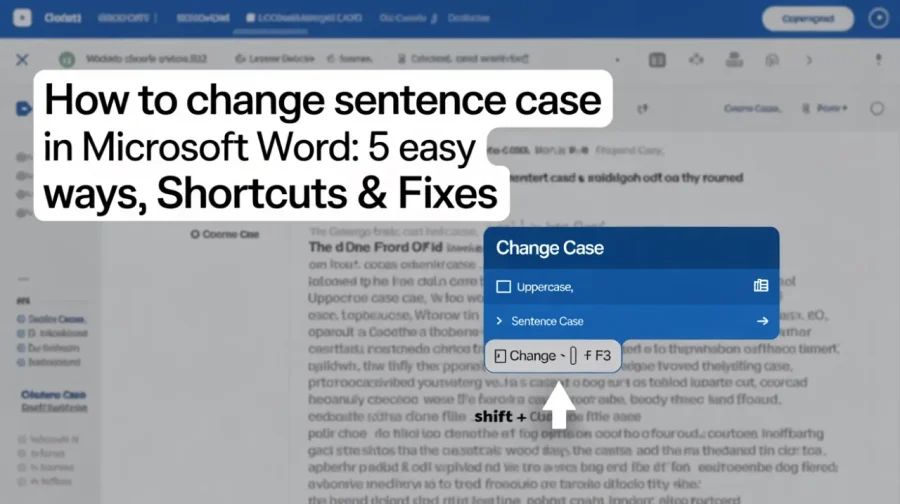
To change text to sentence case in Microsoft Word (the fastest way in 2026):
Select the text you want to fix (or press Ctrl + A for the whole document).
Go to the Home tab → Font group → click the Change Case button (Aa icon).
Choose a Sentence case.
Even quicker shortcut (most popular method):
Highlight the text → press Shift + F3 repeatedly. It cycles through:
UPPERCASE
lowercase
Sentence case (or Capitalize Each Word, depending on starting case)
Note: The ribbon method is most reliable for perfect Sentence case. Shift + F3 is great for fast toggling but may need 2–3 presses.
For Word Online (browser): Limited options — use Shift + F3 or open in the desktop app for full control.
This fixes ALL CAPS text instantly without retyping. Works the same in Microsoft 365, Word 2021, and on Mac.
What Sentence Case Really Means in Microsoft Word—and Why It Matters
You’ve just pasted a long email, research notes, or legal text into Microsoft Word, and everything appears in ALL CAPS. The text presents multiple problems because it lacks a professional appearance and creates reading difficulties while violating all your style guide requirements. The sentence case function provides a fast solution by capitalizing the first letter of each sentence while keeping all other letters in lowercase, which reflects authentic writing standards.
Microsoft Word has offered this feature for years, yet most people still retype or hunt for workarounds. Users can find the Change Case tool through the Font group which is located on the Home tab. The software operates in the same way across Windows and Mac systems and Microsoft 365 subscriptions while users can apply it to all document types from basic edits to complete content changes.
Every professional who works on theses, contracts, reports, and shared office documents uses sentence case as their daily writing system. The system enhances reading experience while providing necessary reading support for screen readers and maintaining document uniformity with Microsoft’s writing style guidelines. The correct method allows you to fix
The Five Change Case Options Explained
Microsoft Word gives you five precise choices under the Change Case button (the Aa icon). Understanding each one prevents mistakes and saves clicks.
Here’s a clear breakdown:
Option | What It Does | Best Used For | Example Input → Output |
Sentence case | Capitalizes first letter of each sentence | Body text, paragraphs, reports | “THIS IS A TEST. ANOTHER SENTENCE.” → “This is a test. Another sentence.” |
lowercase | Makes everything small letters | Cleaning ALL CAPS quickly | “ALL CAPS TEXT” → “all caps text” |
UPPERCASE | Makes everything capital letters | Headings that need emphasis | “title” → “TITLE” |
Capitalize Each Word | Capitalizes the first letter of every word | Titles, headings | “this is a title” → “This Is A Title” |
tOGGLE cASE | Reverses whatever case is currently applied | Quick inversion experiments | “Mixed Case” → “mIXED cASE” |
Sentence case is the one most people want for normal writing. It respects periods, question marks, and exclamation points to figure out where new sentences begin. The other options are perfect for specific jobs, but mixing them up is where frustration starts.
How to Change Text to Sentence Case Using the Ribbon (Desktop Version)
The method is most dependable because it operates the same way on both Windows and Mac systems for Microsoft Word versions 2019, 2021, and Microsoft 365.
- Open your document.
- Use the mouse to highlight the text you want to fix or triple-click a paragraph or press Ctrl+A Cmd+A on Mac to select the whole document.
- Go to the Home tab at the top.
- In the Font group, click the Change Case button (Aa with a small arrow).
- Select Sentence case.
Text changes occur immediately. To reverse the changes you dislike press Ctrl+Z Cmd+Z.
For large documents, you should start by choosing the body paragraphs before you apply the sentence case to the entire text. The application of sentence case to headings will remove their proper title-style capitalization so using Word Styles proves to be a more effective solution (more on that later).
The Truth About the Shift+F3 Shortcut
Many tutorials claim Shift+F3 is the magic button for sentence case. Here’s the accurate behavior in 2026:
Select your text and press Shift+F3. It cycles through three options only:
- UPPERCASE
- lowercase
- Capitalize Each Word
It does not give you a true sentence case in a single press. If your text starts in all caps, the third press often lands on Capitalize Each Word, which is close but not perfect. That’s why the ribbon menu remains the official and most dependable route for sentence case.
Still, Shift+F3 is incredibly useful for rapid toggling when you just need to clean up text fast. Power users keep both methods in their toolkit: ribbon for precision, shortcut for speed.
Changing Case in Microsoft Word for the Web (Online Version)
If you’re working in a browser with Word for the web (part of Microsoft 365), the experience is more limited. The full Change Case dropdown isn’t available. You can still do basic lowercase and UPPERCASE through the limited ribbon, and Shift+F3 works partially, but the true sentence case is missing.
Best workaround: Click Open in Desktop App from the File menu. The desktop version gives you every option plus better performance for long documents. Microsoft keeps the online version lightweight for collaboration, but serious formatting work still belongs in the full program.
Advanced Techniques for Bulk Changes and Automation
When you’re dealing with dozens of pages or repeat the same task weekly, these methods save serious time.
Find and Replace with formatting
Press Ctrl+H, click More, then use the Format button to target specific case styles. You can replace ALL CAPS sections with sentence case without touching headings.
VBA Macro for true sentence case
If you handle imported text constantly, a short macro turns the process into one click. Microsoft’s official documentation provides ready-to-use code that respects sentence boundaries far better than manual methods. Assign it to a custom shortcut or Quick Access Toolbar button and you’re done.
AutoCorrect rules
Go to File > Options > Proofing > AutoCorrect Options and set exceptions or patterns for common capitalization issues. This works in the background for future typing.
These tools turn Microsoft Word from a basic word processor into a smart formatting assistant.
Common Mistakes and How to Avoid Them
Even experienced users run into these issues:
- Applying sentence case to the entire document when it contains headings → Headings lose their style. Fix: Use Heading Styles first, then apply sentence case only to body text.
- Forgetting to select the text → Nothing happens. Fix: Always highlight first.
- Relying solely on Shift+F3 and expecting a perfect sentence case → You get Capitalize Each Word instead. Fix: Use the ribbon menu for the final step.
- Working in a protected document or read-only file → Change Case is grayed out. Fix: Go to Review tab and remove protection.
- Abbreviations or lists with periods confusing Word → It treats each item as a new sentence. Fix: Review manually or use tOGGLE cASE as a quick reset before reapplying sentence case.
Best Practices for Professional, Consistent Documents
When to Choose Alternatives to Microsoft Word
Sometimes Word isn’t the fastest option:
- Google Docs offers a similar Format > Text > Capitalization > Sentence case menu and works great for real-time collaboration.
- Free online case converter handle one-off paste-and-convert jobs without opening any program.
- Excel’s PROPER, UPPER, and LOWER functions work for spreadsheets but don’t understand full sentences.
- PowerPoint and Outlook use the exact same Change Case feature as Word, so the skills transfer instantly.
Use desktop Word when you need precision and integration with Styles. Reach for online tools only for quick, one-time cleanups.
Troubleshooting Guide: When Nothing Seems to Work
Ribbon button missing? Right-click the ribbon, choose Customize the Ribbon, and add Change Case back to the Font group.
Document won’t let you edit? Check for protection or inheritance from a template.
Do Mac users see different behavior? The steps are identical to Windows—update to the latest Microsoft 365 version if issues persist.
Still stuck? Microsoft’s support site has version-specific troubleshooting for 2026 releases.
FAQs
How do I change all caps to sentence case in Microsoft Word?
You can convert all capital letters into proper sentence formatting by selecting text and accessing the Home menu to select Change Case and then choosing Sentence case. The ribbon method is fastest and most accurate.
Does Shift+F3 work for sentence case?
The Shift+F3 key combination does not provide the function to create sentence case. The function keys for this command will change text to all uppercase letters or all lowercase letters or to Capitalize Each Word format. The true sentence case can only be created using the ribbon dropdown menu.
What method can I use to transform text into different letter styles without needing to write everything again?
The process requires no retyping because you can highlight text and select either the Change Case button or Shift+F3 for immediate text conversion.
Is there a dedicated keyboard shortcut for sentence case?
The application lacks a dedicated single-key shortcut but users can create one-click access through Quick Access Toolbar links to the command.
Why doesn’t the sentence case work properly in my document?
The document fails to use sentence case because users have not selected any text and document protection is active and they are using Word for the web instead of the desktop application.
Can I change the case the same way in Word for Mac?
Word for Mac allows users to change text case through the same methods which Word for Windows provides.
How do I change the case for an entire long document?
The complete document can be converted to different case formats through the following process. The user should use Ctrl+A to select all content, and then apply the Sentence case to all selected text. The user should select body paragraphs when dealing with mixed content while keeping all styled headings in their original form.
What’s the difference between sentence case and Capitalize Each Word?
The difference between sentence case and Capitalize Each Word is shown in their different methods of capitalizing text. Sentence case capitalizes only the start of each sentence. Capitalize Each Word (title case) capitalizes every word—perfect for headings but not for body text.
